Connection guide
How to connect Eyivo to ChatGPT
Bring your Eyivo websites into a ChatGPT conversation. Connect once, choose a website, and ask ChatGPT to help with your pages, images, menus, and content.
Setup instructions reviewed · English guide
Connect directly with the Eyivo Sites plugin
Open the Eyivo Sites plugin page, select Install plugin, and follow the prompts to connect your Eyivo account. Review the requested permissions before approving access. You do not need to add a custom MCP server manually when using this option.
If you prefer to add the MCP server yourself, follow the complete manual setup guide below.
Before you start
Set up the connection in ChatGPT on the web. Your ChatGPT account or workspace must allow custom MCP servers; ask your workspace administrator if the option is unavailable.
ChatGPT’s current setup instructions start with Plugins → Add custom MCP server and do not include a separate Developer mode step. If Add custom MCP server is available in your account, continue with the steps below.
- An Eyivo account that owns the website you want to work on.
- A ChatGPT account with permission to add a custom MCP server.
- Your Eyivo sign-in details for the authorization screen.
Use OAuth for ChatGPT. You do not need to create an OpenAI API key or paste an Eyivo personal API token into a chat.
1. Open ChatGPT Plugins
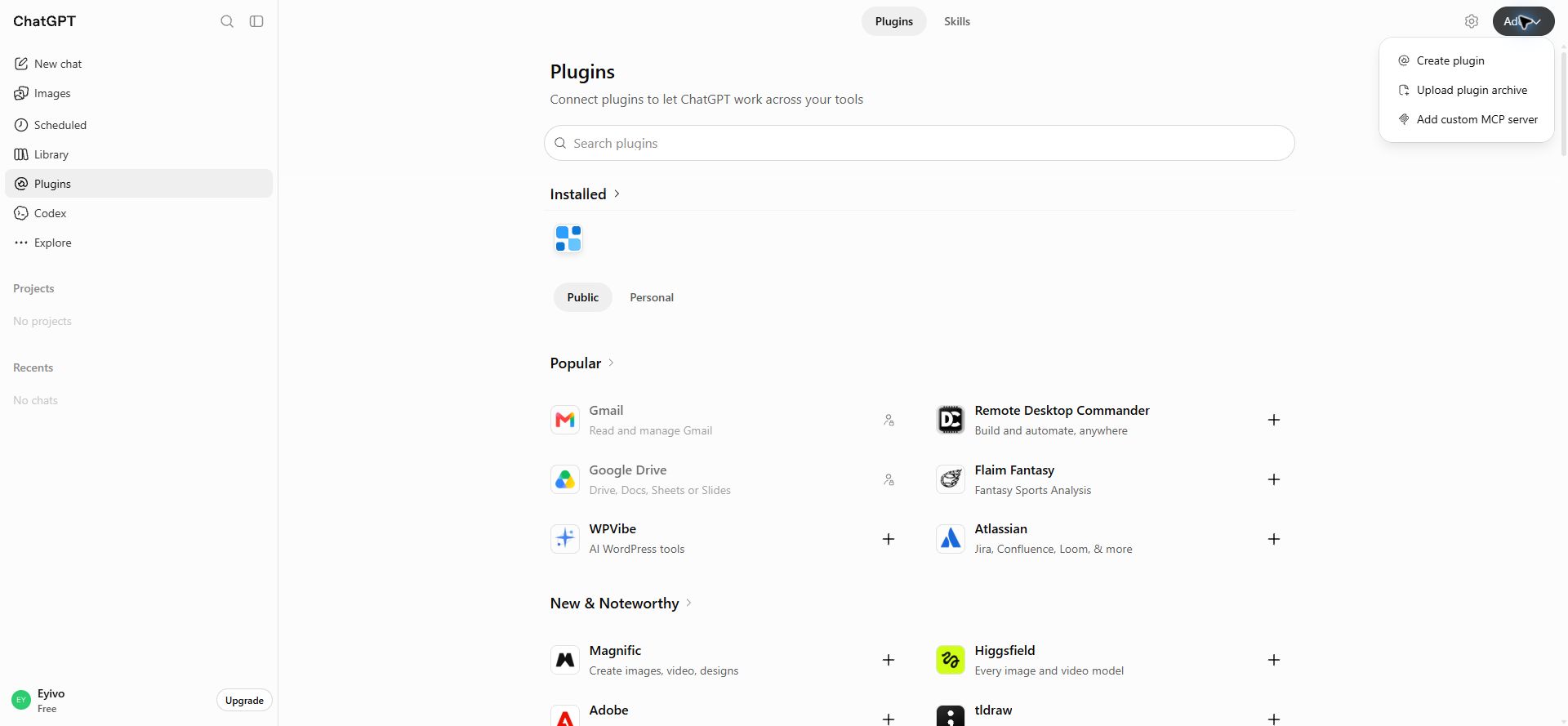
Sign in to ChatGPT and open Plugins. Select the plus button and choose Add custom MCP server.
The interface can vary by account and language. In Turkish, Plugins appears as Eklentiler. Follow the custom MCP server option, rather than an unrelated plugin installation.
2. Enter the Eyivo connection details
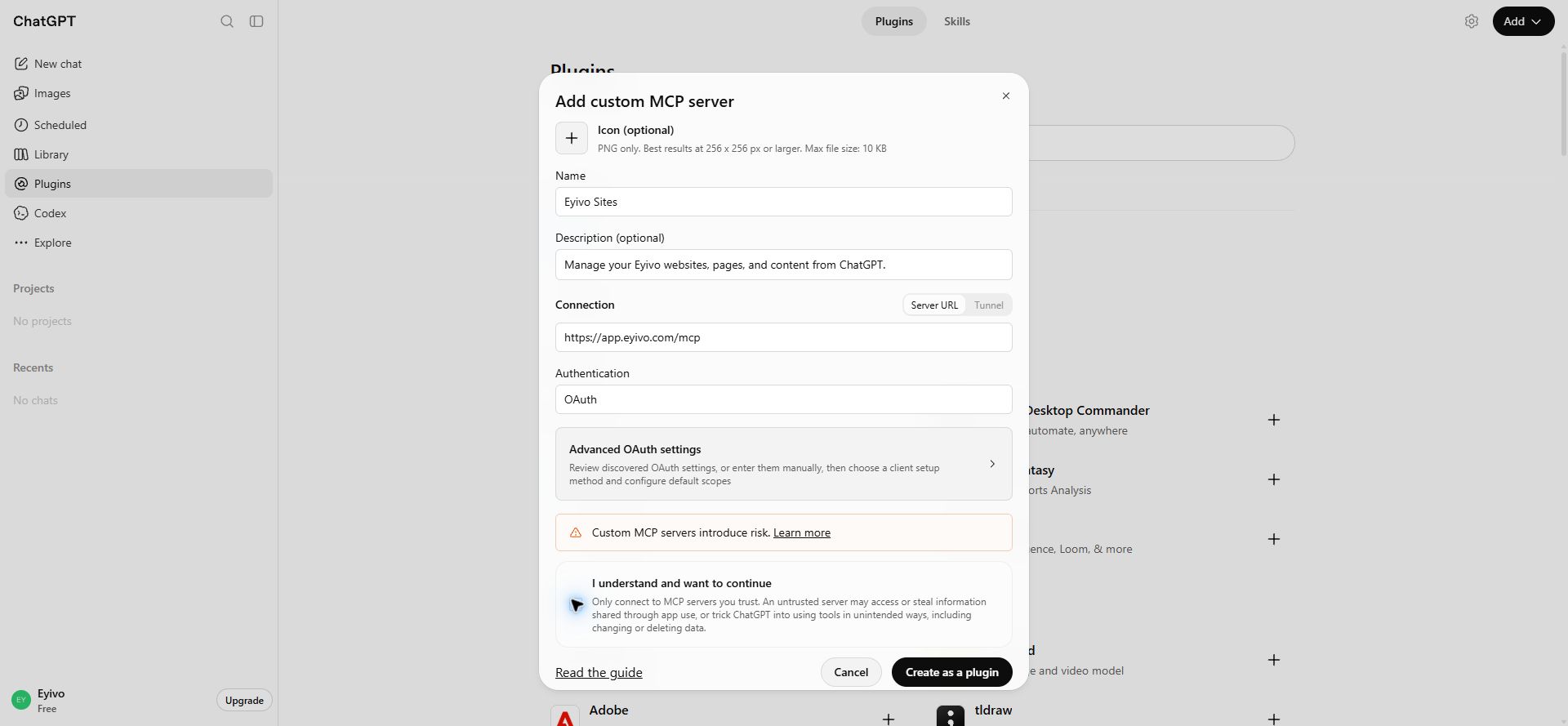
Name the connection Eyivo Sites and enter the server URL shown below. Select OAuth as the authentication method. Open Advanced OAuth settings and wait for discovery to finish. Confirm that Dynamic client registration (DCR) is selected and that the discovered OAuth endpoints belong to app.eyivo.com. Eyivo registers the client automatically; a personal API token is not needed for this flow.
| Setting | Value |
|---|---|
| Name | Eyivo Sites |
| Server URL | https://app.eyivo.com/mcp |
| Authentication | OAuth |
| Transport | Streamable HTTP |
https://app.eyivo.com/mcpUse the central app.eyivo.com endpoint, including /mcp. A website address such as yoursite.eyivo.com is not the MCP server.
3. Choose the starting permissions
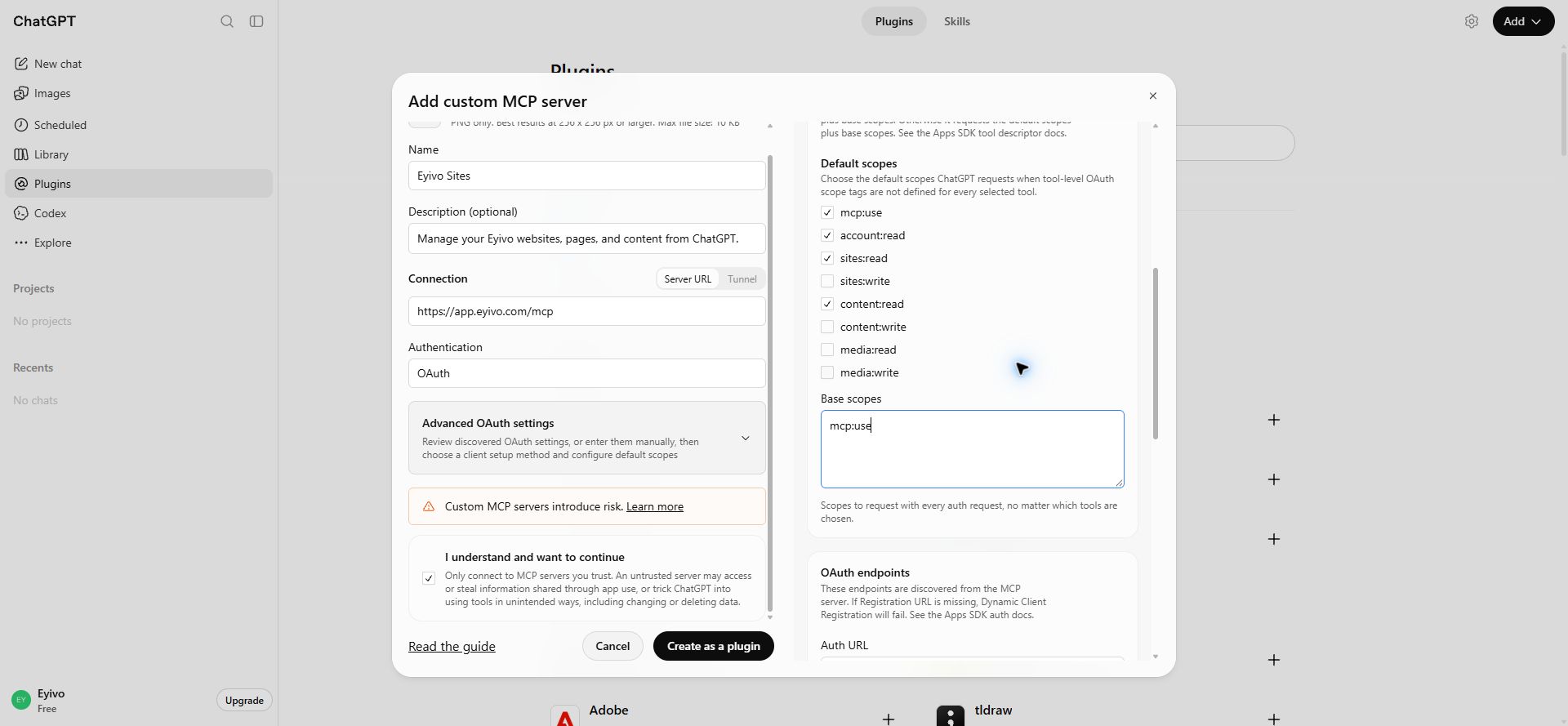
In Advanced OAuth settings, review Default scopes. For a first read-only check, keep mcp:use, account:read, sites:read, and content:read selected. Enter mcp:use under Base scopes so the MCP transport permission is always requested.
- Leave sites:write, content:write, and media permissions unselected until you have a workflow that needs them.
- Tool-specific permissions can require additional authorization later. Review the requested access whenever ChatGPT asks you to reconnect.
4. Sign in to Eyivo and review access
Review ChatGPT’s connection notice and continue creating the connection. When the Eyivo sign-in or authorization page opens, check that its address is app.eyivo.com. Sign in and review the account and permissions before approving access.
- mcp:use enables the MCP connection; it does not grant content access by itself.
- account:read, sites:read, and content:read support an initial read-only website check.
- Write, media, and publishing operations require their corresponding scopes. Review these separately when you want ChatGPT to make changes.
Eyivo only exposes websites owned by the authorized account. A ChatGPT connection does not grant access to another customer’s websites.
5. Install the connection and try a first request
After authorization, find the connection in your personal plugins and install it. Start a new conversation, type @, and select Eyivo Sites so ChatGPT uses the connection.
- Check that the returned website names belong to your Eyivo account.
- Select the website you want to work on; do not guess its ID.
- Ask ChatGPT to read the site capabilities and content workflow before proposing an edit.
Use Eyivo Sites to list my websites. Do not change or publish anything.Work with your website
Your theme determines the available page types, sections, fields, and navigation locations. Eyivo’s content tools follow the same ownership, validation, plan limits, and publishing rules as the website panel.
Use Eyivo Sites. Show my websites, then ask which one I want to edit. Read its capabilities and explain how I can update its homepage.Saving a draft and publishing are separate actions. A publish operation applies to the intended item and language; it does not publish every unrelated draft on the website.
Troubleshooting
I cannot see Add custom MCP server
Confirm that you are using ChatGPT on the web and that your account or workspace permits custom servers. Workspace restrictions may hide or disable this option.
ChatGPT cannot reach the server
Check the HTTPS server URL and its /mcp suffix. Select OAuth, then complete the Eyivo authorization flow. Do not select No authentication for Eyivo.
I get 401 or the connection asks me to sign in again
The access grant may have expired or been revoked. Reauthorize the connection using the correct Eyivo account.
A tool reports 403 or a missing scope
Check that the website belongs to the authorized account and that the connection has the required scope. Reauthorize with the additional permission; refreshing tools alone does not expand an OAuth grant.
A newly added Eyivo tool does not appear
Open the connection’s settings in ChatGPT and refresh its tool metadata. Start a new conversation to use the refreshed tool list.
Eyivo says the connected-app limit has been reached
Review Connected apps in Eyivo and your current plan’s allowance. Remove a connection you no longer need or choose a plan with enough connected-app capacity.
Manage or remove access
Use Connected apps in Eyivo to review or revoke the authorization. Manage the installed connection in ChatGPT as well. Revoking access in Eyivo prevents that grant from accessing your account again.
Related resources
- Eyivo MCP server documentation — full permissions, tools, and workflow reference.
- Eyivo Sites in ChatGPT Plugins — The direct installation page for the Eyivo Sites plugin.
- OpenAI: add a custom MCP server — ChatGPT setup and supported authentication.
- OpenAI: connect and test your plugin — Installation, testing, and tool refresh.