Connection guide
How to connect Eyivo to Claude
Connect Claude to your Eyivo account so it can help you read and update your websites. This guide uses the remote MCP connector on claude.ai, with English screenshots from the setup screens.
Setup instructions reviewed · English guide
Before you start
Use Claude on the web for the setup shown here. Claude Free accounts can add one custom connector. In a managed workspace, an owner may need to add the connector before you can connect your own Eyivo account.
- Sign in to the Eyivo account that owns your website.
- Sign in to Claude and check that Add custom connector is available.
- Have your Eyivo sign-in details ready for the Eyivo authorization screen.
Use OAuth. You do not need an Anthropic API key, a personal Eyivo API token, or a local Claude Desktop configuration file for this connection.
1. Open Claude Connectors
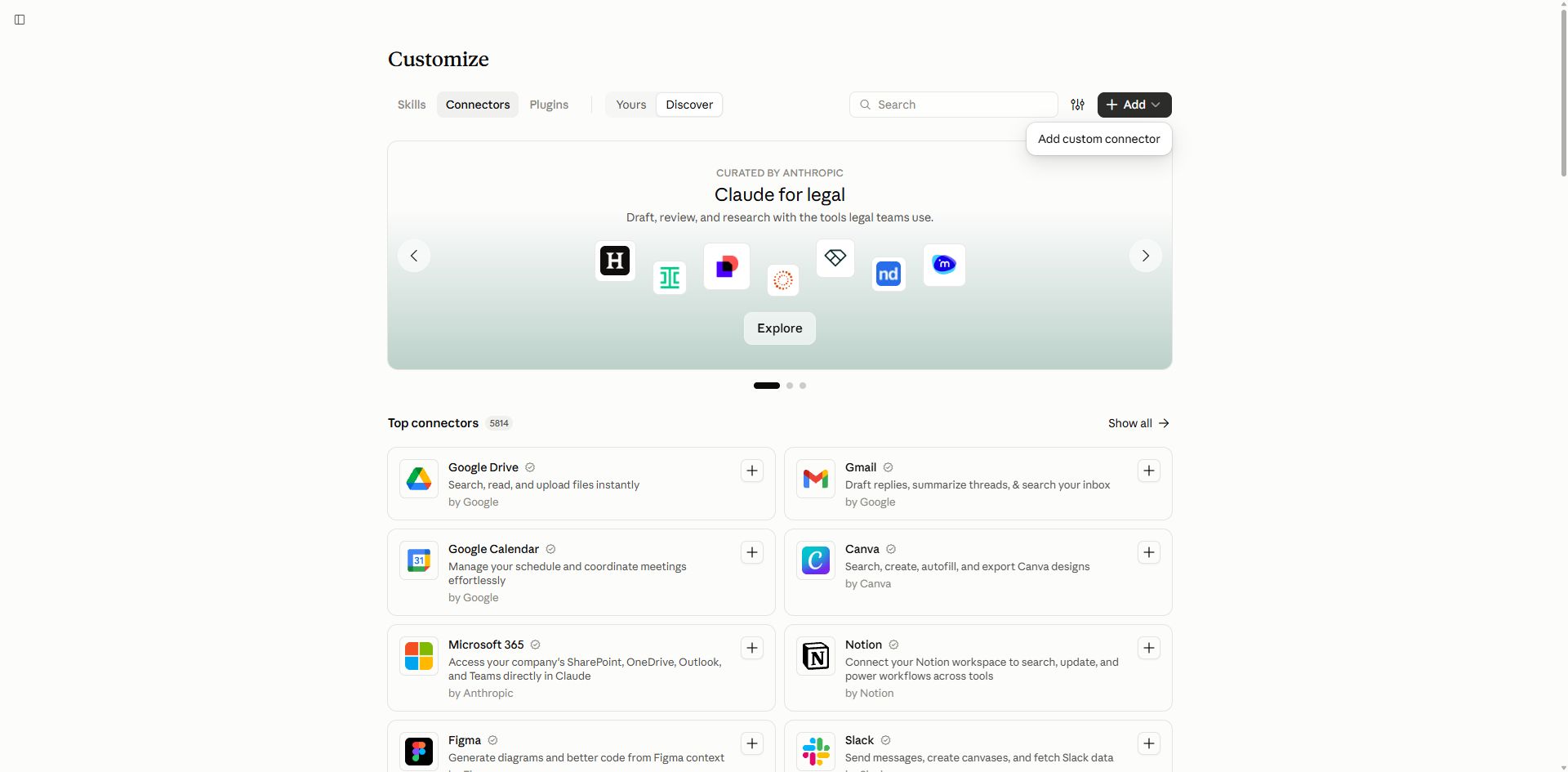
Open Customize in Claude’s sidebar, then select Connectors. Select Add and choose Add custom connector.
2. Enter the Eyivo server URL
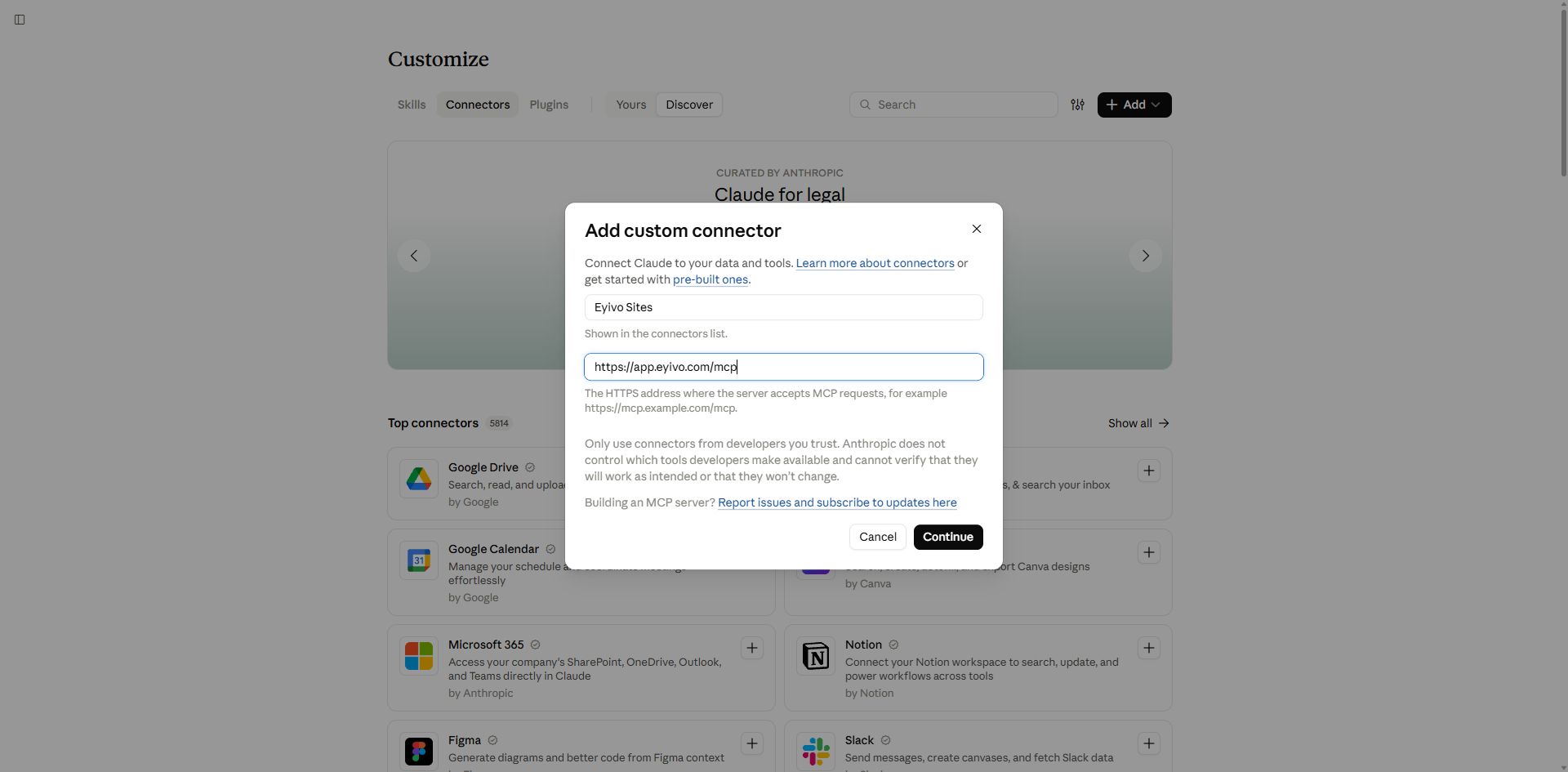
Enter Eyivo Sites as the name and the server URL below, then select Continue. Claude reads the server’s connection settings.
| Setting | Value |
|---|---|
| Name | Eyivo Sites |
| Server URL | https://app.eyivo.com/mcp |
| Authentication | OAuth |
| Transport | Streamable HTTP |
https://app.eyivo.com/mcpKeep /mcp at the end of the URL. Your website’s own domain is not the MCP endpoint; all accounts connect through the central Eyivo app.
3. Choose sign-in and automatic registration
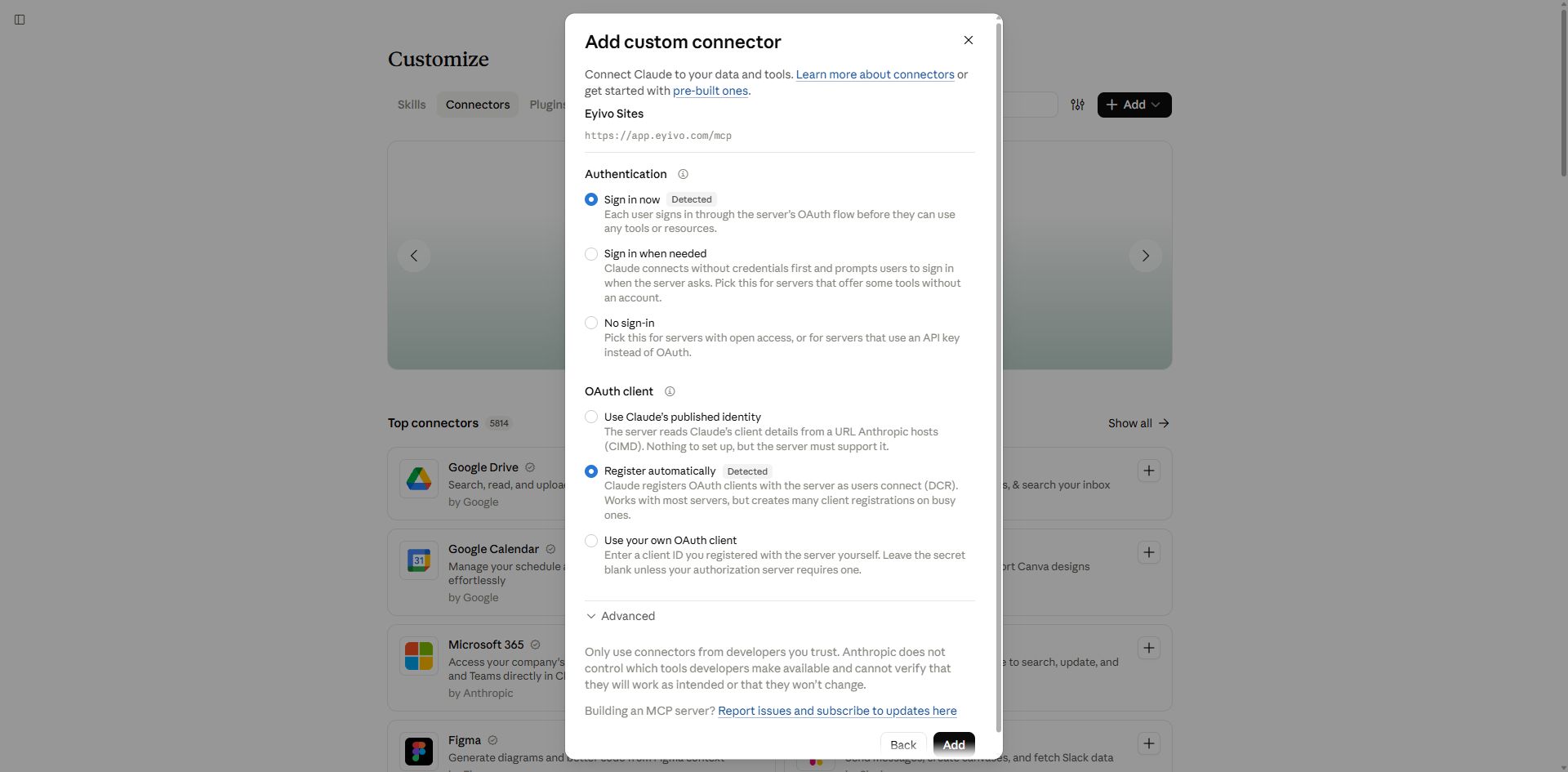
Under Authentication, select Sign in now. Under OAuth client, select Register automatically. This is Dynamic Client Registration (DCR): Eyivo creates Claude’s OAuth client automatically, so you do not enter a client ID or client secret. If Claude requests a confidential client, Eyivo supplies its generated client secret directly during registration.
Use Register automatically for Eyivo. Use Claude’s published identity is a different mechanism called CIMD, which the Eyivo server does not advertise. No sign-in is unsuitable for an Eyivo account connection.
4. Check Streamable HTTP and add the connector
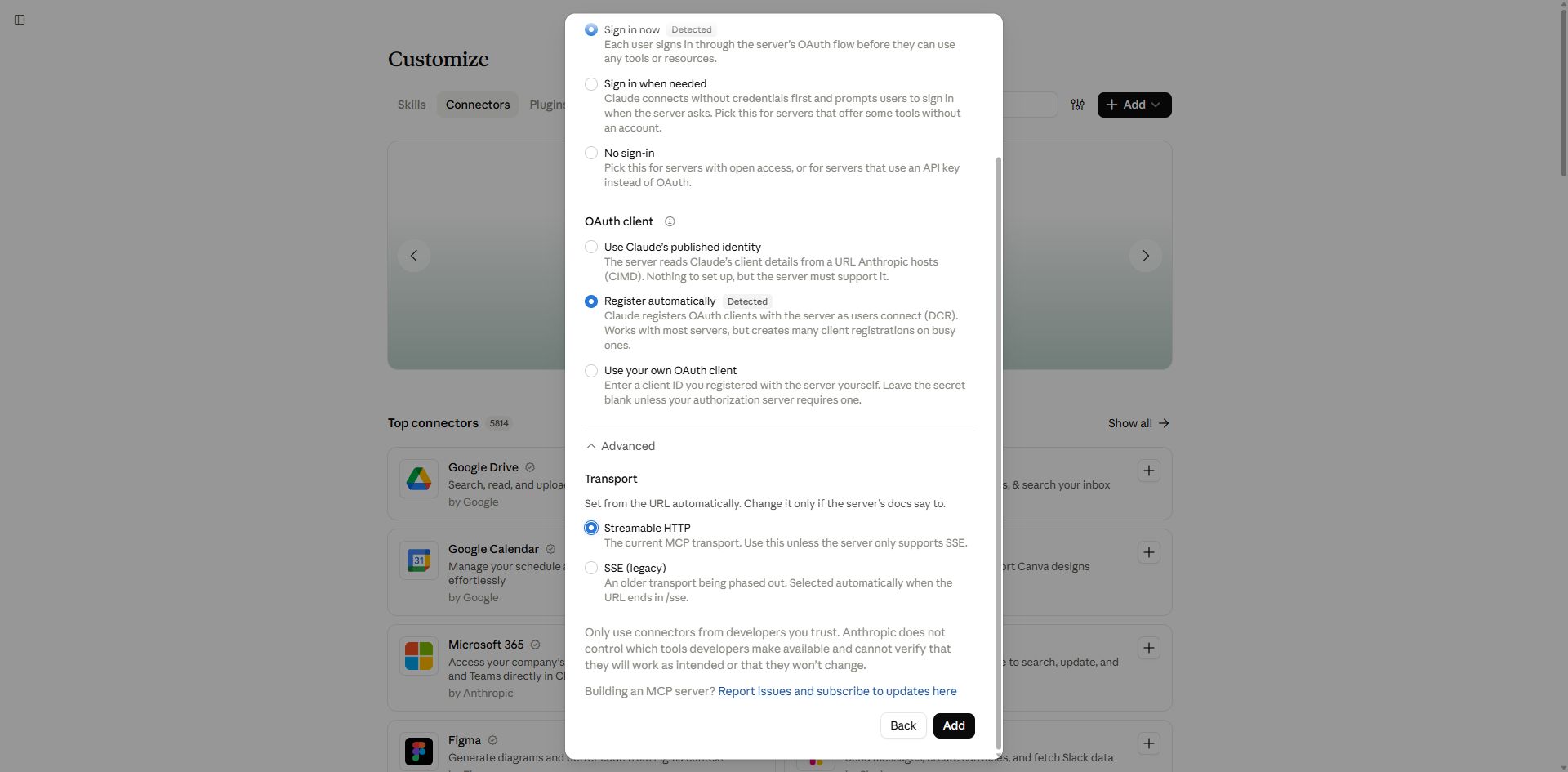
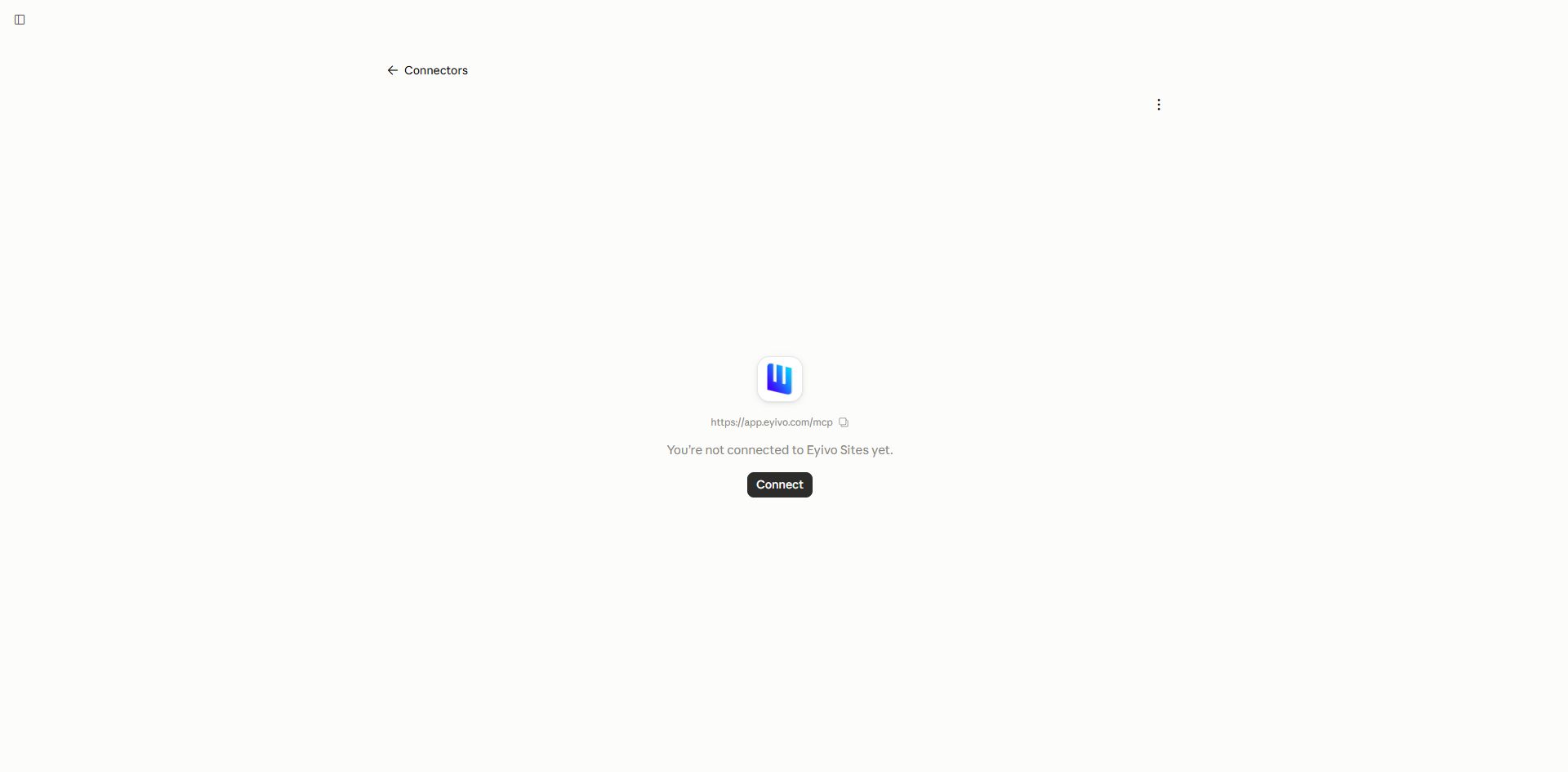
Expand Advanced if you want to check the transport. Keep Streamable HTTP selected, then select Add. If Claude opens the connector details without starting sign-in, select Connect.
5. Sign in to Eyivo and review access
On the Eyivo Sites connector, select Connect if it is not yet connected. When the Eyivo authorization page opens, check that you are on app.eyivo.com and signed in to the correct account. Review the requested access before selecting Allow.
- mcp:use permits the MCP connection. Account, website, content, and media permissions control which tools can run.
- Read permissions allow inspection; write permissions allow changes within the authorized account.
- The Claude setup shown here has no individual scope checkboxes. Review the permissions on Eyivo’s consent page and select Deny if they are broader than you want.
Adding a connector configuration is not the same as authorizing account access. Complete the Eyivo sign-in and return to Claude before testing website tools.
Confirm the connection in Claude
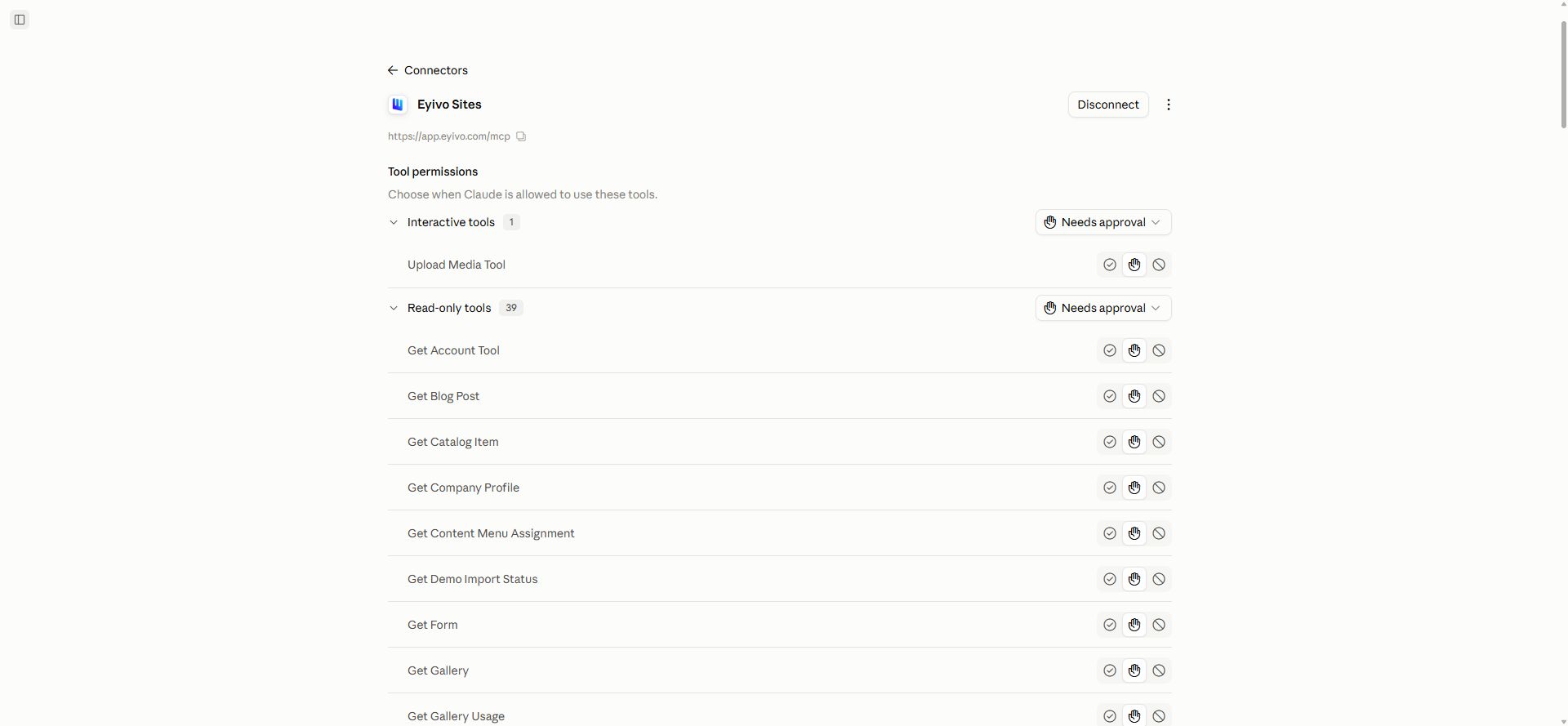
After returning from Eyivo, open the Eyivo Sites connector in Claude. A connected connector shows Disconnect and a list of Tool permissions. Keep tools that change or publish content set to Needs approval so you can review each proposed action.
Claude’s tool approval settings are separate from Eyivo’s OAuth permissions. They do not add permissions that your Eyivo account has not granted.
6. Enable Eyivo Sites in a conversation
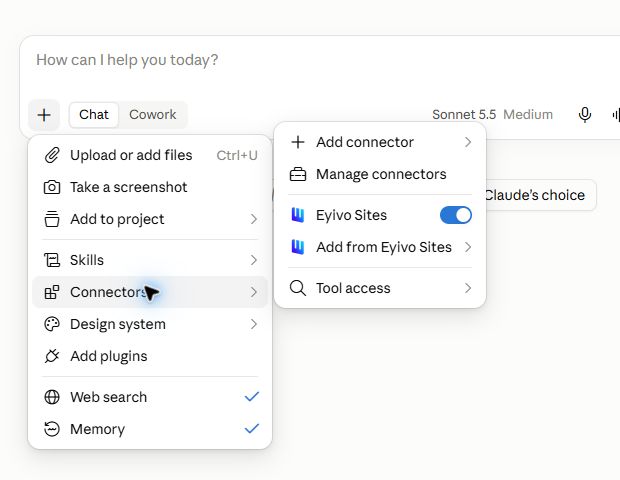
Start a new Claude conversation. Open the plus menu beside the message box, choose Connectors, and enable Eyivo Sites. If the menu still shows Connect, finish authorization first.
7. Try a first read-only request
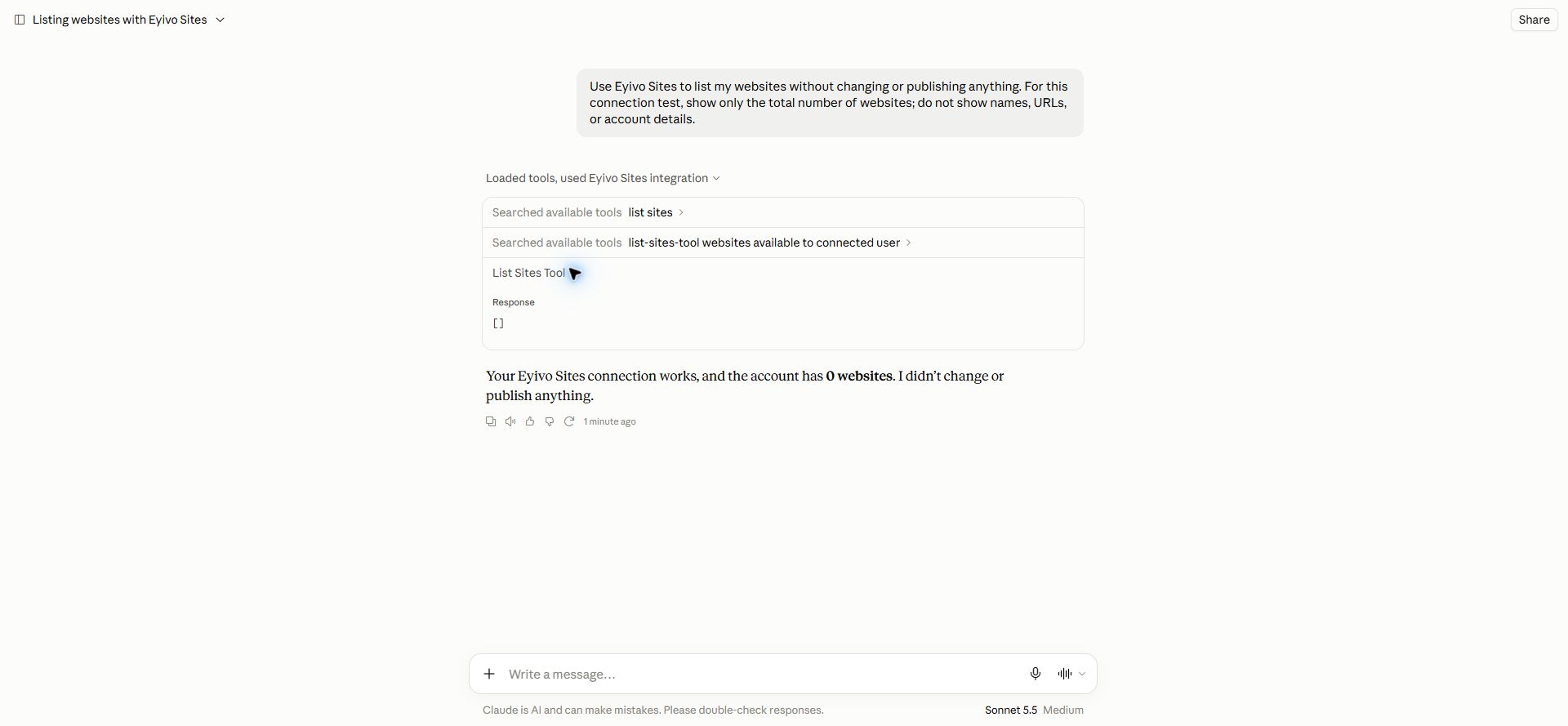
Send the prompt below. If Claude asks to run List Sites Tool, review the request and choose Allow once. This check reads your website list and returns its total count. It does not save or publish content.
- Check that Claude used List Sites Tool and returned a count from Eyivo.
- A count of zero is a successful connection with no websites in the authorized account.
- To start working, ask for the website names, choose one, and ask Claude to read its capabilities before suggesting changes.
Use Eyivo Sites to list my websites without changing or publishing anything. For this connection test, show only the total number of websites; do not show names, URLs, or account details.After this check, you can ask Claude to show the website names and choose one to work on. The count-only example keeps those details out of the documentation screenshot.
Work with your website
Eyivo tools follow the website panel’s ownership, validation, theme capabilities, and plan limits. Tell Claude which website and language you want to edit, then review the proposed changes.
Use Eyivo Sites. Read my website’s capabilities and homepage. Suggest improvements, but ask me before saving or publishing anything.Saving a draft and publishing are separate actions. Review the draft before publishing the intended item and language. Unrelated drafts stay unpublished.
Troubleshooting
I cannot find Add custom connector
Open Customize → Connectors on claude.ai. Check your account’s connector allowance or ask your workspace owner to add the connector. Claude Free accounts are limited to one custom connector.
Connect does not open Eyivo sign-in
Confirm Sign in now, Register automatically, and the /mcp server URL. If it still fails before the Eyivo page opens, contact Eyivo support with the time of the attempt and any visible error. A registration failure needs a server-side check; selecting No sign-in will not fix it.
Claude cannot reach the server
Use the public HTTPS endpoint shown above. Remote connector requests come from Claude’s servers, so a private address, local URL, or blocked OAuth endpoint cannot work even if it opens on your own device.
I get 401 or need to sign in again
Reconnect Eyivo Sites using the correct Eyivo account. Its authorization may have expired or been revoked.
A tool returns 403 or a missing scope
Check that your account owns the website and that the OAuth grant includes the required permission. Enabling a connector in a conversation does not add missing scopes.
The returned website list is empty
An empty list can be a valid result. If you have not created a website yet, create your first website in Eyivo and ask again. If you already have websites, check which Eyivo account you authorized. A connection only exposes that account’s websites; signing in with a different account does not combine their websites.
Eyivo says the connected-app limit has been reached
Review Eyivo Connected apps and your plan’s allowance. Revoke a connection you no longer need, or choose a plan with enough capacity.
Manage or remove access
Turn off Eyivo Sites in a conversation when you do not need its tools. To revoke account access, open Connected apps in Eyivo and revoke the grant. You can also remove the connector from Claude’s Connectors list using its options menu.
Related resources
- Eyivo MCP server documentation — full permissions, tools, and workflow reference.
- Claude: get started with custom connectors — Account availability, setup, and conversation controls.
- Claude: use connectors — Using connected tools and troubleshooting access.