Getting started
How to create a website with Eyivo
Use AI guided setup to create a website from a few answers, or follow the video and screenshots below to build your homepage yourself. Verify your email before publishing. You can edit your website whenever you want.
Walkthrough recorded · English guide · No demo content
Watch the walkthrough
The complete walkthrough: an empty dashboard, a new website with demo content switched off, original homepage text, and the published result.
Watch on YouTube or follow the written steps below.
Write, create, and publish your website with guided setup
Select Build with AI from your dashboard or the Create a site screen to open guided setup. Your name, category, and short description supply the facts used in your first website. Each question includes an example to help you get started. Choose the website language and optionally add offerings and the contact details you want visitors to see. Placeholder examples are not used as your answers.
In the Design step, choose your theme. Themes that suit your category appear first, marked Suggested, and the best fit is preselected. You can pick any other theme, open View demo to see it with sample content, and switch themes later in Design.
Eyivo sends your business answers to OpenAI to write the content in your chosen website language. It builds Home, About, and Contact, and may add Services, Our approach, or FAQ pages when they are useful and fit your plan. Illustrative images come from your chosen theme’s demo, or from the shared theme demo library when that theme has none available. With a verified email address, check your answers before selecting Create and publish my website: your details, generated content, and starter images will be public when setup finishes.
If your account can access the dashboard before email verification, choose Create my draft website to build and preview privately. Your pages, business details, design, and footer menu remain drafts. Verify your email, then review and publish each part using the links on the result screen. Verifying your email while setup is running does not automatically publish a setup started as a draft.
Progress updates automatically while AI writes the content and Eyivo prepares the pages, business details, design settings, and footer menu. Verified-email setups also publish them. You do not need to refresh or check status. When your website is ready, review the generated content and use Edit on any page to correct or expand it. Later edits follow the normal save-and-publish workflow.
When setup finishes, select Manage your website to open its management panel. Published setups also offer View live website; private drafts offer a preview for each page. Your website is selected in the sidebar, where you can open Pages, Identity, Design, and Messages.
Your website tasks on the website overview guide you step by step. Go live: publish your homepage, business details and any saved changes. Make it yours: add your logo and publish an About or Services page. Get found and contacted: write search descriptions, add your social profiles and test your contact form. Grow: connect your domain, publish a second language and share a blog post, product, gallery or video. Connecting your AI assistant is a bonus you can do at any time.
Only the next unfinished task is open; later tasks stay visible with a lock until the one before them is done. Finished tasks show a checkmark, and a published homepage keeps its checkmark when it has unpublished edits. After the go-live steps you can skip a task and reopen it later. The list updates automatically while the overview is open and checks your default language; unpublished policy pages and extra languages do not block going live.
Guided setup creates a new website and preserves existing websites. Setups started before email verification stay private drafts. Setups started with verified email publish automatically. If preparation fails, use Retry on the progress screen to continue the same website; completed work is preserved. If publication is interrupted, some parts may already be live.
Before you start
- Sign in to your Eyivo account. Create an account first if you do not have one.
- Decide on a name for your website and the language you want to write in.
- Prepare a headline and a short introduction in your own words. You can start without an image.
The recording uses the Compact template, English, and a new site called Fresh Start Studio. Use your own name and text. Other templates can offer different sections and fields.
1. Start from your dashboard
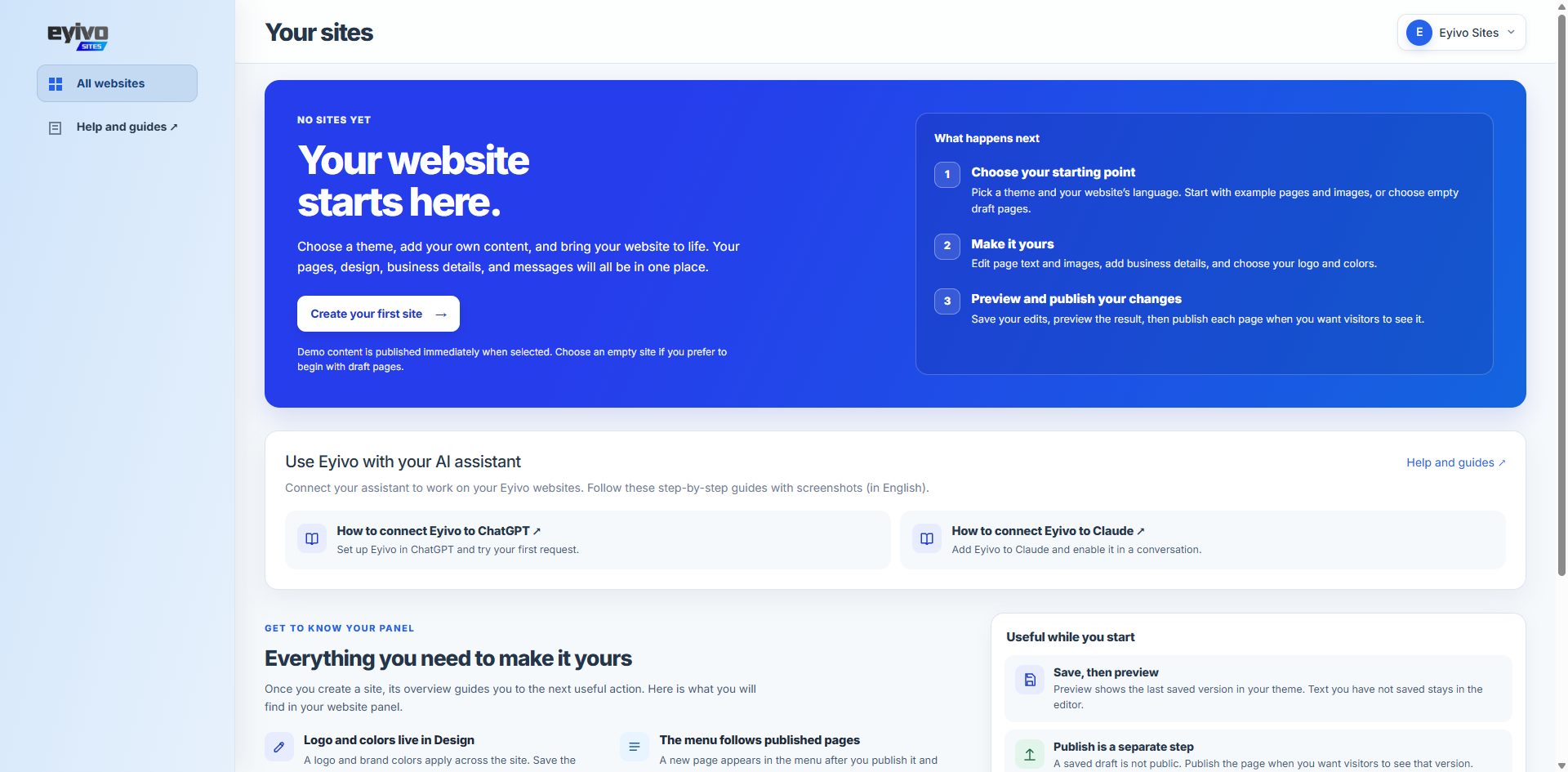
The dashboard offers two starting points: Build with AI prepares a website from your answers; Choose a theme lets you select a design and add your own content or start with demo pages. Select Choose a theme to follow this walkthrough.
When your account has no websites, the theme option appears under Start with a theme. If you already have a website and your plan allows another, select Choose a theme from My websites.
2. Name your website and choose a template
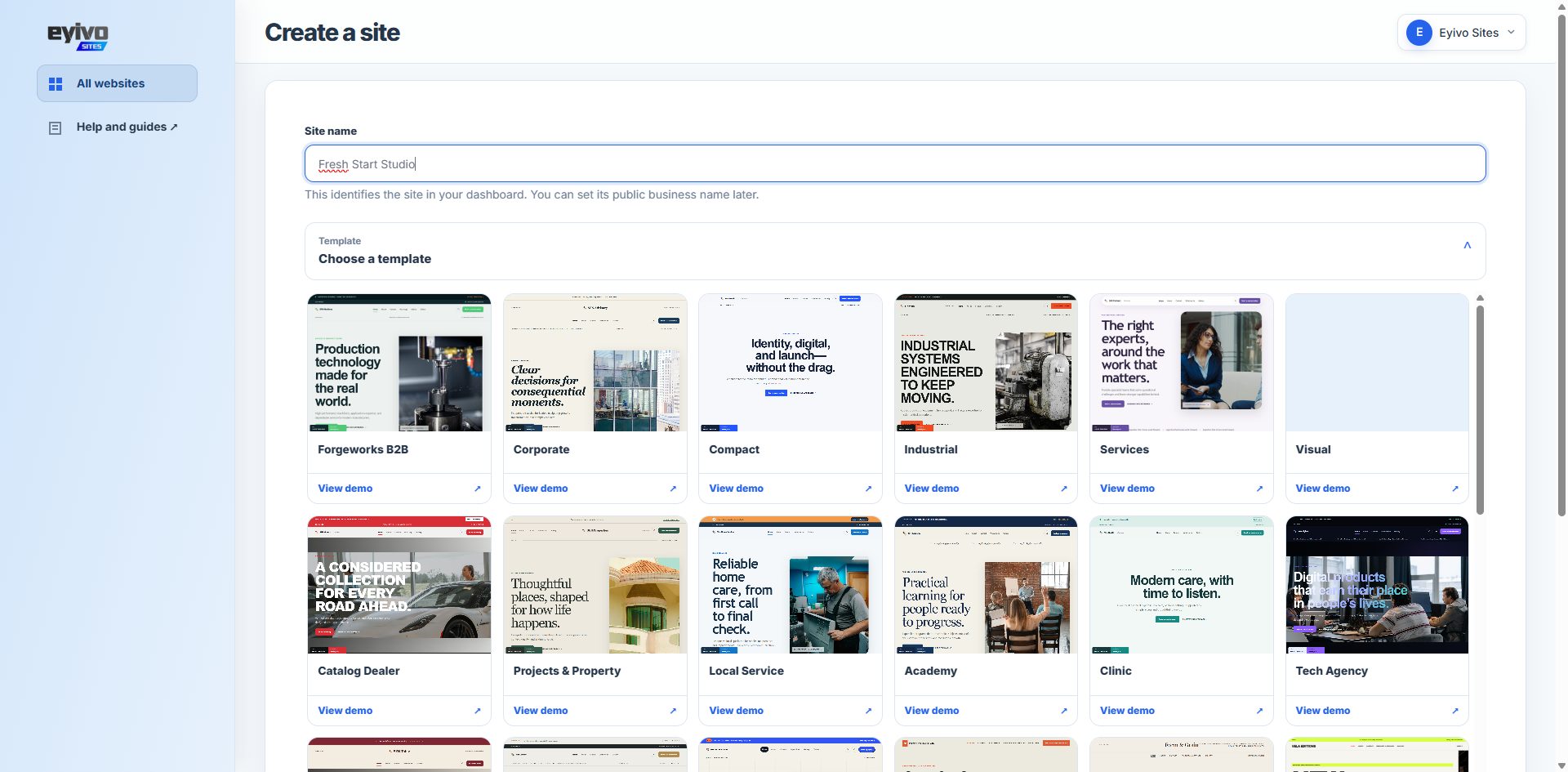
Enter your own name in Site name. This identifies the website in your dashboard; public business details can be set separately later.
Open the Template picker and select a design. The walkthrough chooses Compact. View demo lets you inspect a design before selecting it.
A template controls the layout and available sections. Choosing a template does not mean you have to import its example text or images.
3. Choose your language and turn off demo content
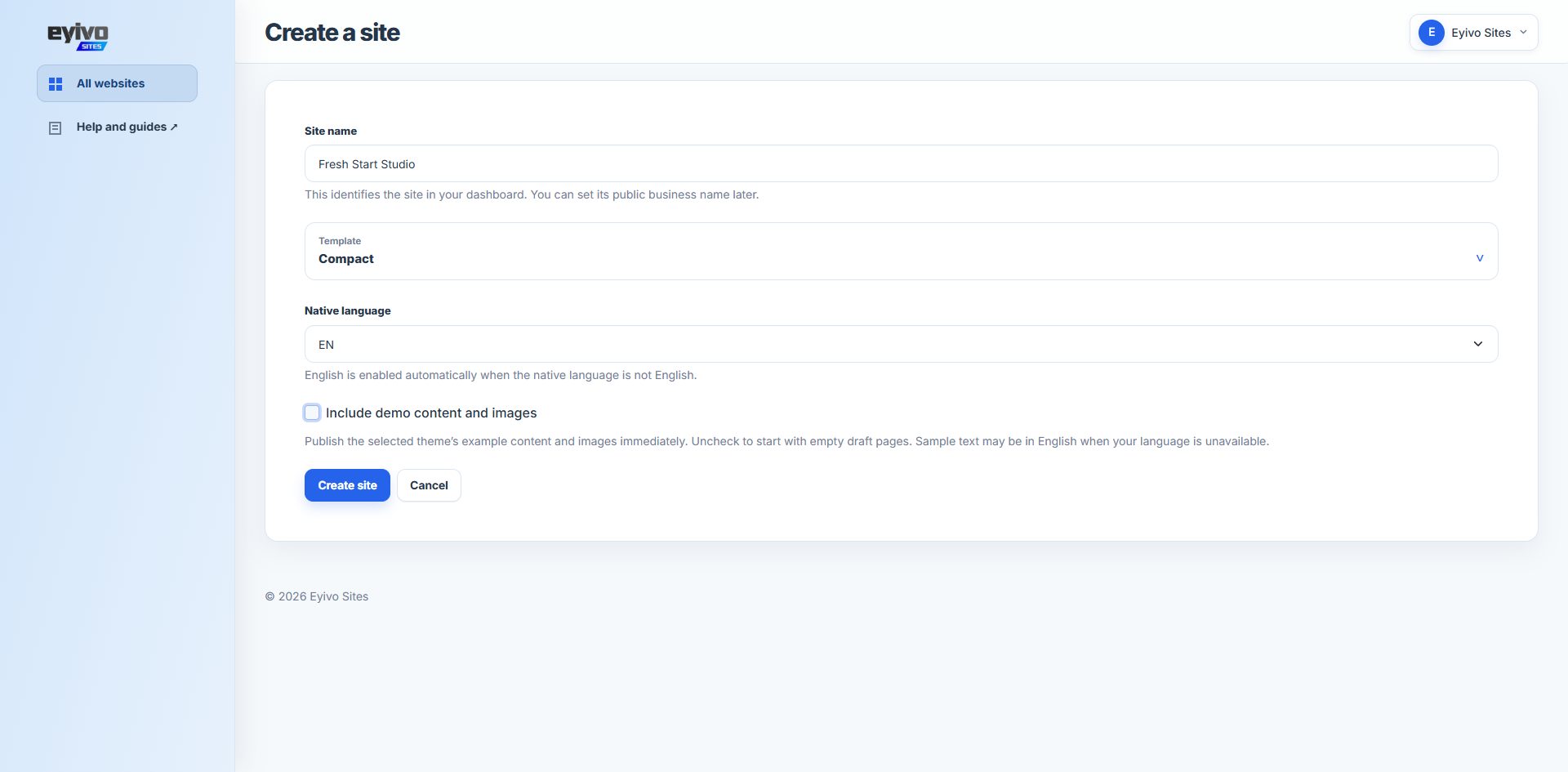
Choose your main content language in Native language. The recording uses EN for English.
Uncheck Include demo content and images. Then select Create site. This starts the website with empty draft pages so you can write your own content.
Keep Include demo content and images unchecked to follow this tutorial. Selecting it loads and publishes the template's example content instead.
4. Open your first homepage section
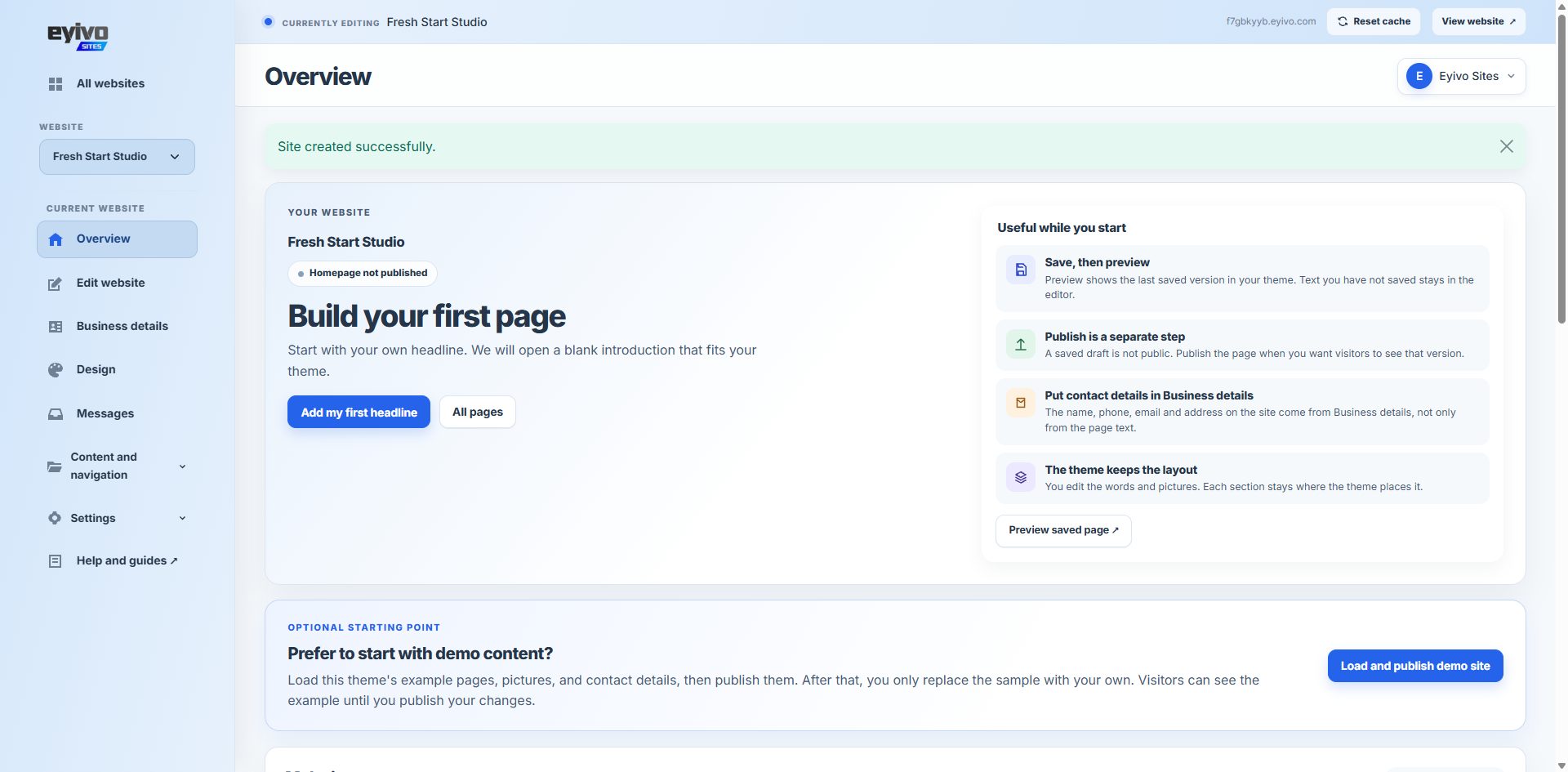
After creation, the website overview shows Build your first page and Homepage not published. Select Add my first headline.
Eyivo opens the Home editor and a blank introduction section that fits the selected template.
The overview also offers Load and publish demo site. Leave that option alone when you want to continue with your own content.
5. Write your headline and introduction
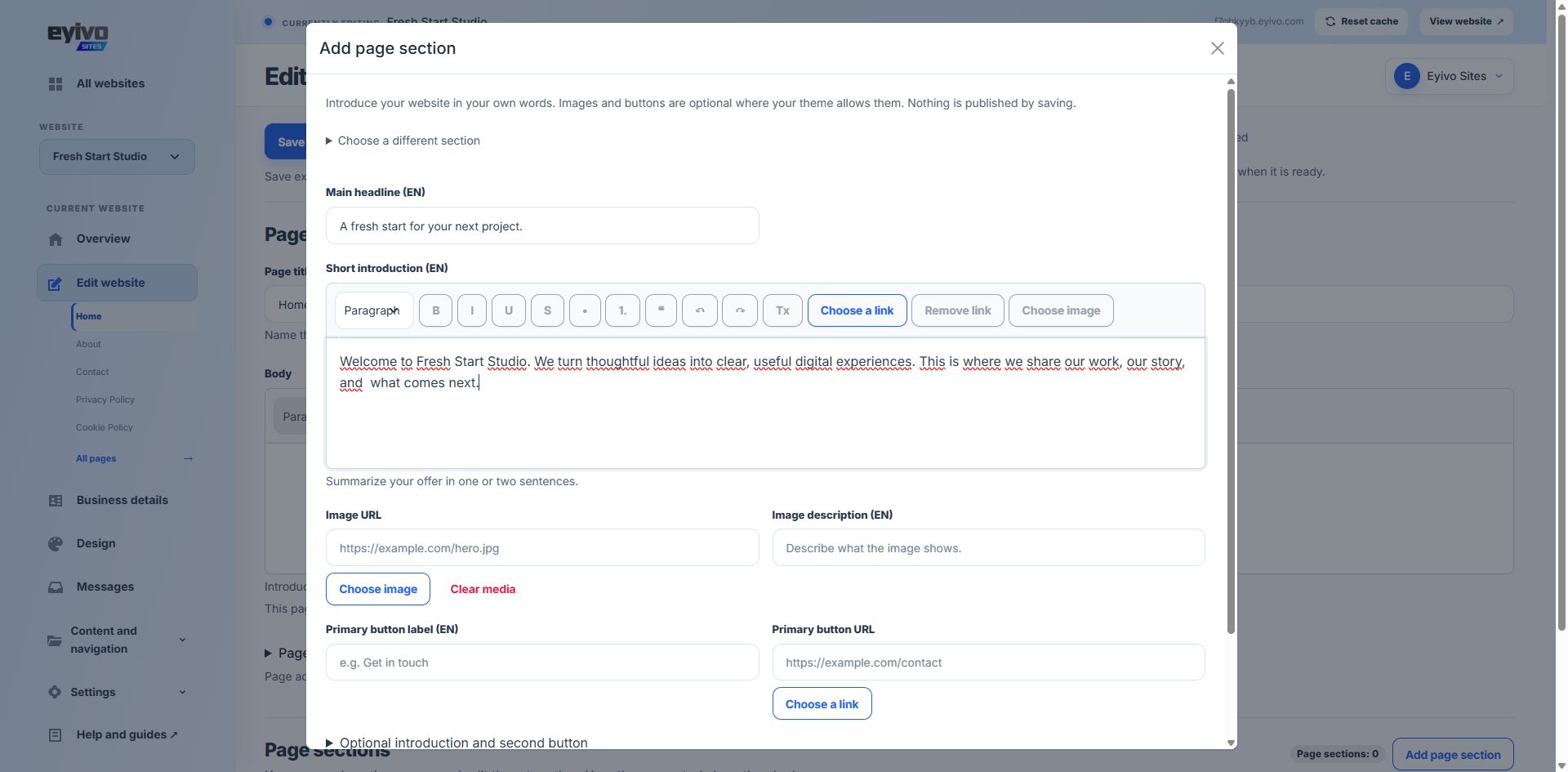
In Add page section, fill in Main headline and Short introduction for your selected language. The headline is the main message visitors see; the introduction explains who you are or what you offer.
In the recording, the headline is A fresh start for your next project. Write a headline that suits your own website, then add a short introduction underneath it.
Images and buttons are optional where the template allows them. The recording leaves them empty and publishes a text introduction.
Some page types use sections instead of the Body field. If Body is disabled with that explanation, add your content in Page sections. Your section headline is separate from the page title, such as Home.
6. Save your draft, then publish the homepage
Scroll to the bottom of the dialog and select Add homepage introduction. This creates the section as a draft; it does not publish it.
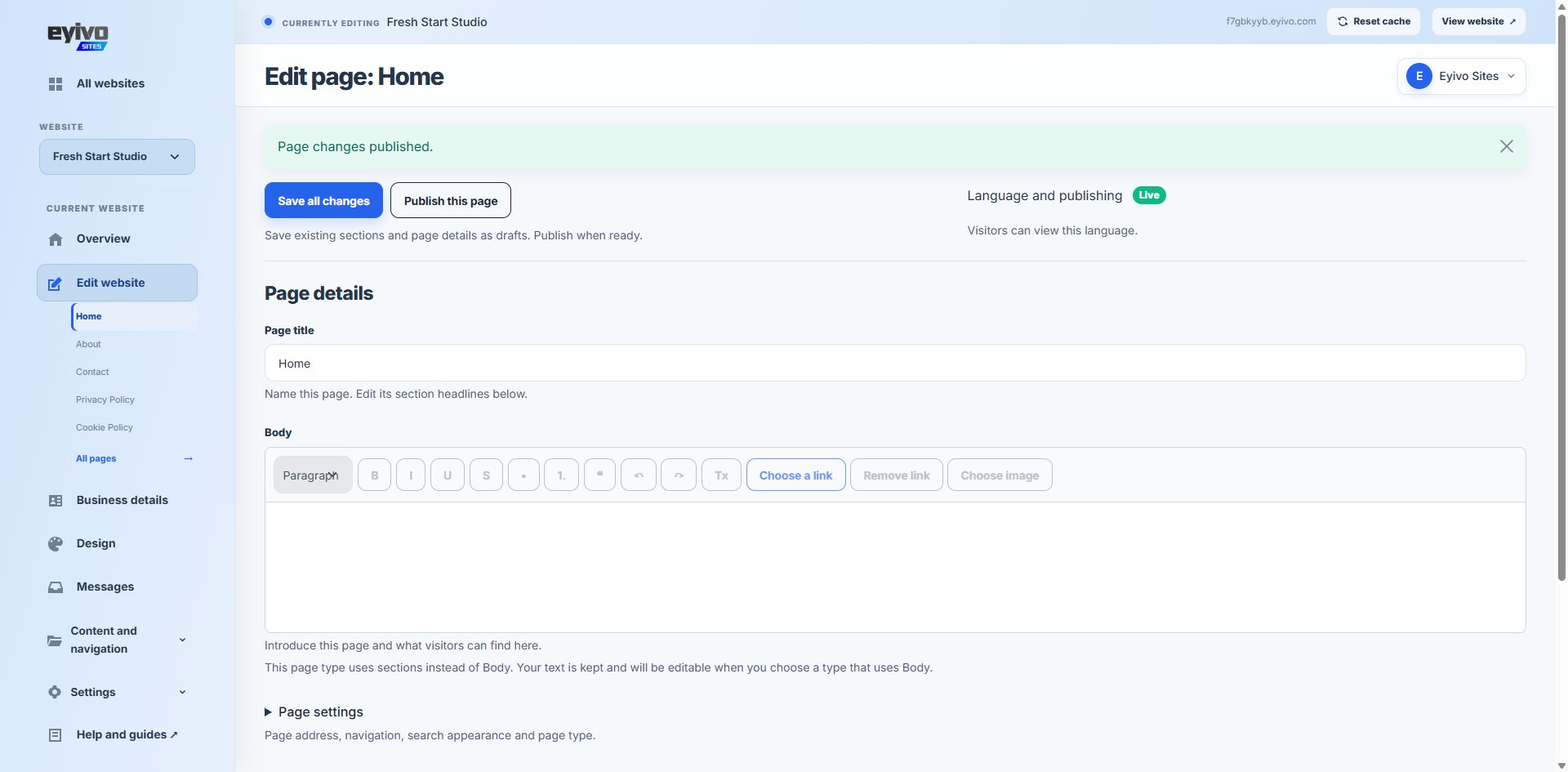
If you make further edits in the page editor, select Save all changes. You can use Preview draft to check the saved version before publishing.
When the saved content is ready, select Publish this page. Wait for Page changes published and the green Live status in Language and publishing.
Saving and publishing are separate actions. Save your changes before publishing. Publishing Home does not publish the other pages listed in the sidebar.
7. View your published website
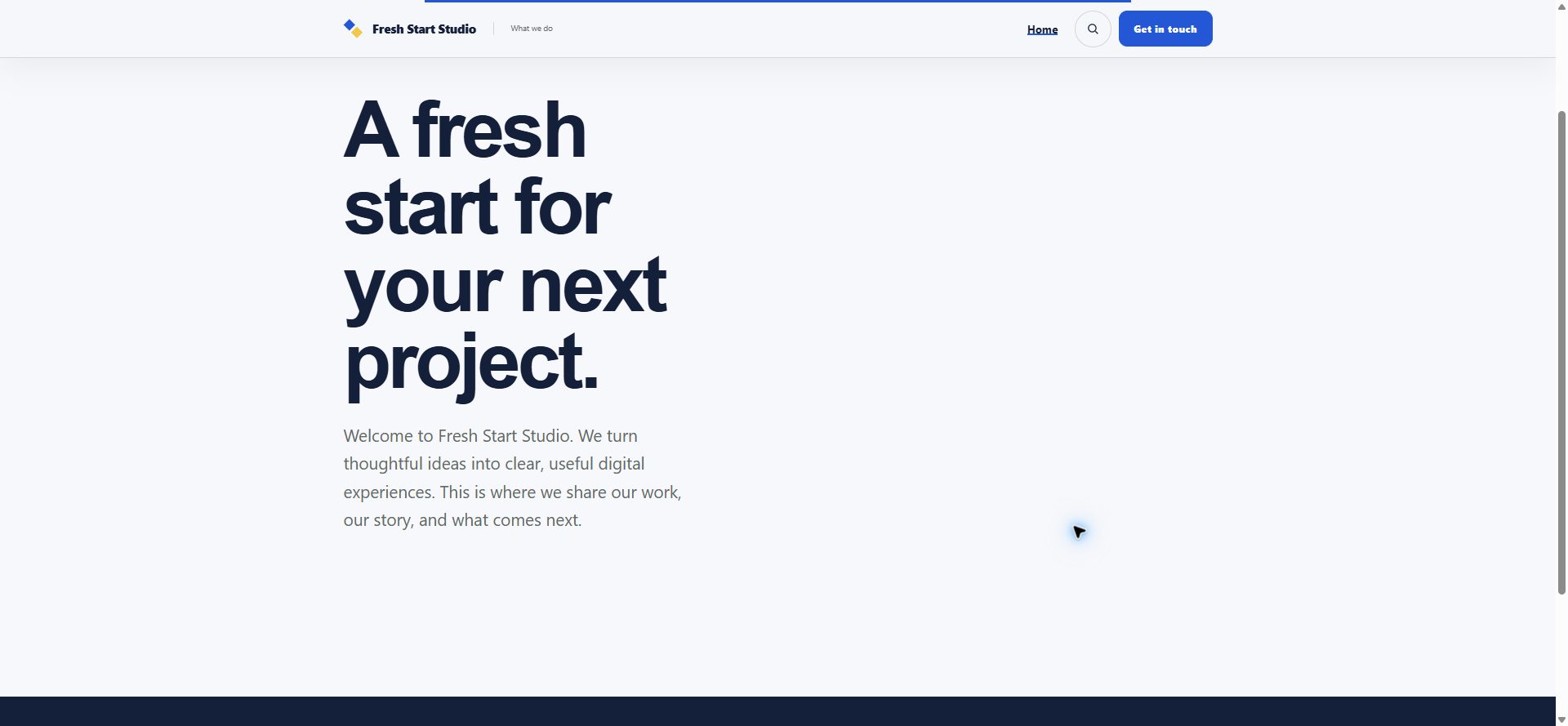
Select View website in the top website bar. Your public site opens on its assigned Eyivo address. Check that the headline and introduction match what you wrote.
Your first homepage is now online. You can return to Pages to keep improving it, saving and publishing again whenever you want to make changes public.
What to do next
- Open Identity to add your public name, email, phone, and other contact information.
- Open Design to choose your logo and colors.
- Use the page list under Pages, or All pages, to add content to About, Contact, and other pages. Save and publish each page when it is ready.
- Check the public website on a phone as well as a larger screen.
If something does not look right
Why can I not see my new text on the public website?
Save the changes, then select Publish this page for the page and language you edited. A saved draft is not public. Check for the Live status before opening View website.
Why is the Body editor disabled?
The selected template and page type may render sections instead of Body. Follow the message beside Body and add or edit the relevant item in Page sections.
Why are my fields different from the screenshots?
This walkthrough uses Compact and English. A different template can offer different section names, layouts, or required fields. Follow the guidance beside the fields in your own editor.
Can I do this from a phone?
Yes. Open the panel navigation menu to switch between your website overview and pages. Section forms may need scrolling to reach the save button. You can also open any guide screenshot at full size, or watch the video in full screen.
Work on your website with an AI assistant
You can also connect an assistant to your Eyivo account. These guides explain the setup:
- Open Eyivo in ChatGPT — install the Eyivo Sites plugin and connect your account.
- How to connect Eyivo to ChatGPT
- How to connect Eyivo to Claude