Getting started
How to connect your own domain to your Eyivo website
Your website already works at its Eyivo address. Connect a domain you own, such as yourbusiness.com, so visitors find you at your own name. You add two small DNS records at the company where you bought the domain; Eyivo checks them and sets up the secure connection for you.
Steps reviewed · English guide
The records at a glance
Copy the exact host and value for each record from your website’s Website address page in Eyivo. The examples use the reserved example domain sunny-bakery.example.
| Purpose | Type | Host | Value (example) |
|---|---|---|---|
| Prove the domain is yours | TXT | _eyivo-domainverify | site-verification=… |
| Show the website at the domain | A | @ | 203.0.113.10 |
| Show the website at www or a subdomain | CNAME | www | edge-1.edge.example |
Before you start
- A paid plan or a free trial that includes a domain connection. Your domain and its www version use one connection.
- A website in your Eyivo account.
- The login for the company where you bought the domain (your domain provider or registrar). You change its DNS settings there.
Bought your domain through Eyivo? You do not need any of these steps: open My domains and select Connect next to the domain. Eyivo adds the records for you.
1. Add the domain in Eyivo
In Eyivo, open your website and go to Settings, then Website address. Under Add custom domain, type your domain without https:// or www, for example yourbusiness.com, and select Request.
Eyivo now shows the records for your domain: a TXT record to prove the domain is yours, and either a CNAME or an A record that points the domain to your website. Keep this page open; you copy the values from it in the next steps.
2. Open your domain’s DNS settings
Sign in at the company where you bought the domain. Open your list of domains and choose the domain you want to connect.
Look for a button or tab named DNS, DNS management, DNS records, Zone editor or Name servers & DNS. That is where you add records.
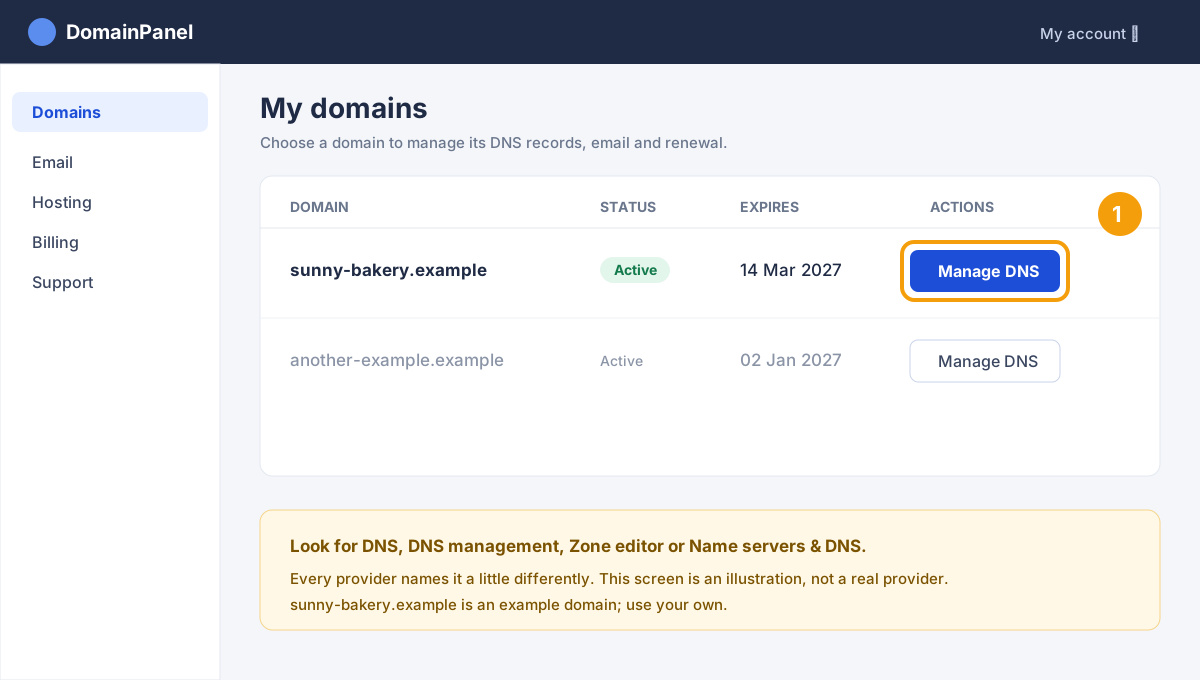
If your domain uses another company’s nameservers, for example Cloudflare, add the records there instead of at the provider where you bought it.
3. Add the TXT record and verify it
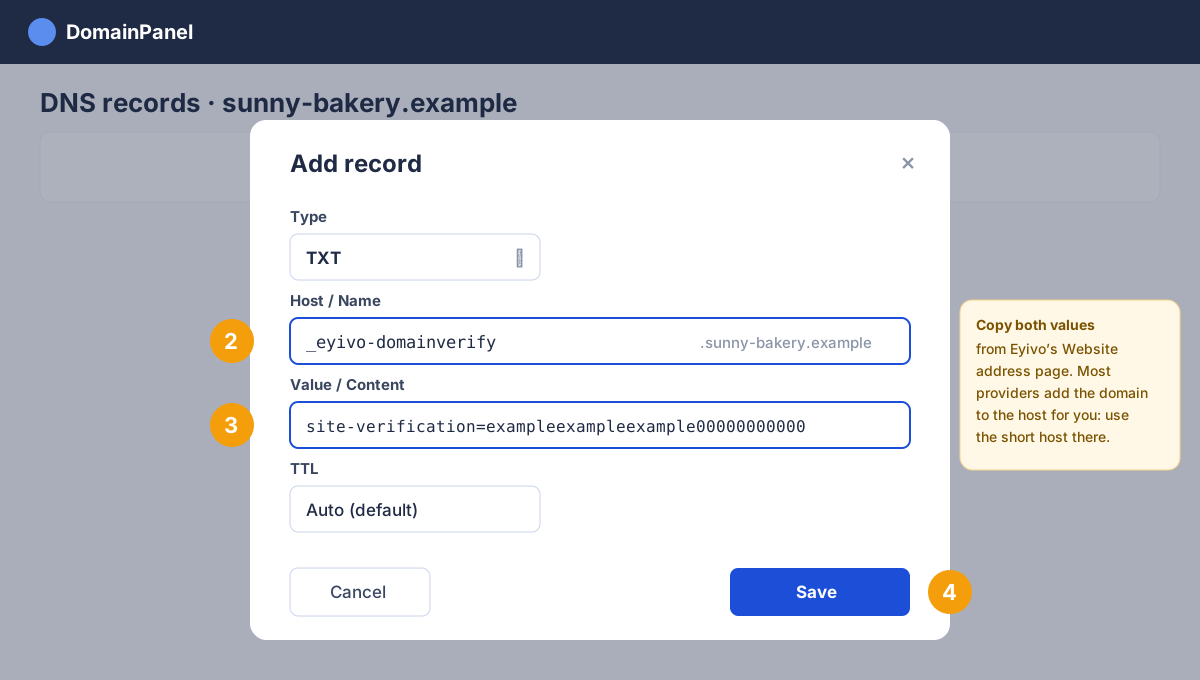
Choose Add record (sometimes Add or New record) and set the type to TXT.
In Host or Name, enter the host Eyivo shows: _eyivo-domainverify followed by your domain. Most providers add your domain automatically; then enter only the short host, _eyivo-domainverify. If you are not sure, look at how the provider shows your other records.
In Value or Content, paste the value from Eyivo exactly as shown, starting with site-verification=. Leave TTL at its default and save.
Back in Eyivo, select Verify TXT. A new record usually works within a few minutes, but some providers take up to an hour. If verification fails, wait a little and select it again.
4. Point the domain to your website
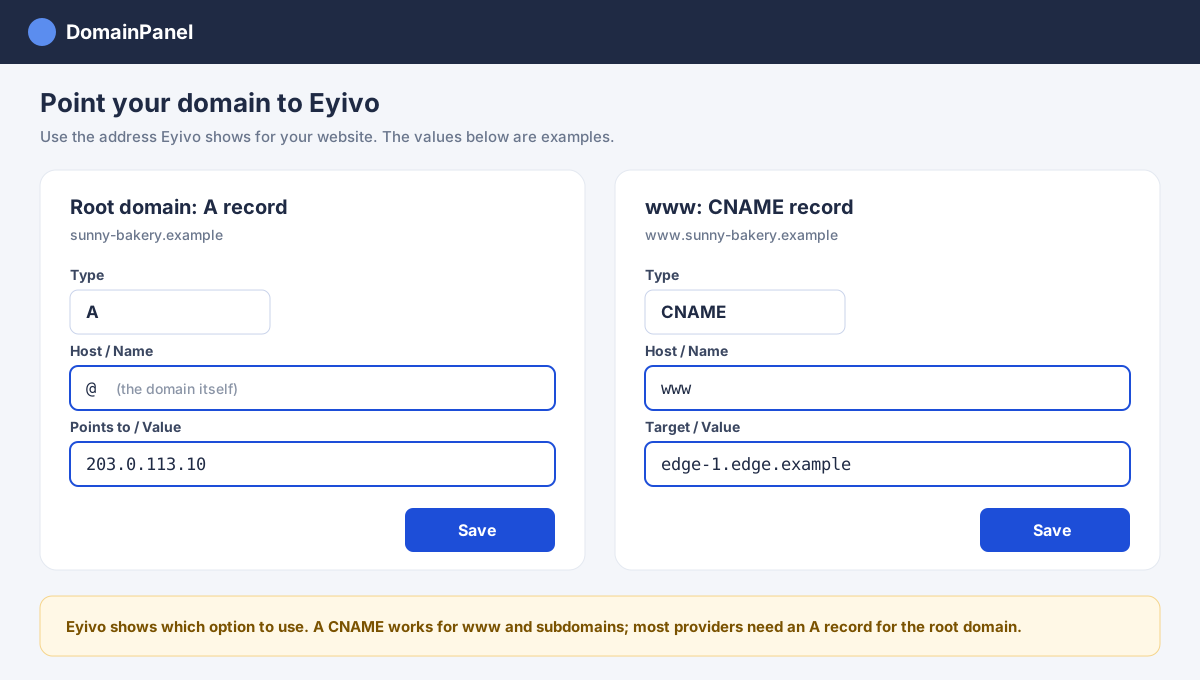
Eyivo shows a CNAME record with a hostname, an A record with an IP address, or both. Use the option Eyivo recommends for your domain, and only one option for each name.
For the domain itself (yourbusiness.com), most providers only allow an A record. Use @ as the host if your provider asks for one, and the IP address from Eyivo as the value.
For www or another subdomain, a CNAME record to the hostname Eyivo shows works well. Enter www as the host and the hostname from Eyivo as the target.
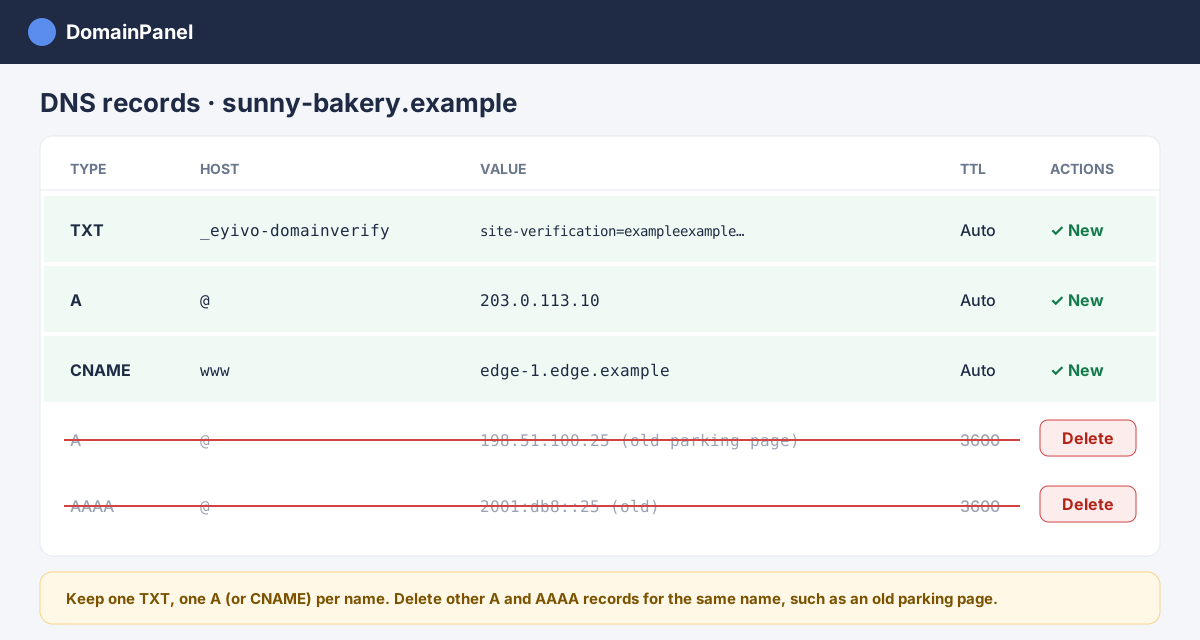
Delete other A and AAAA records for the same name, such as a parking page the provider added. If they stay, some visitors may still see the old page.
Using Cloudflare? Set these records to DNS only (grey cloud), not Proxied, so Eyivo can set up the secure connection.
5. Check your records
Your finished list looks similar to the example below: one TXT record for verification, one record for the domain, and one for www if you connect it. The values in the images are examples; yours come from Eyivo.
After the records are in place
Eyivo checks your records and prepares the secure (https) connection automatically. You can close the page; the Website address page shows the progress when you come back.
The first domain that becomes ready becomes your website’s primary address. Most domains work within an hour; DNS changes can occasionally take longer to reach everyone.
If something does not work
- Verification fails: check that the host is not doubled, such as _eyivo-domainverify.yourbusiness.com.yourbusiness.com. Use the short host if your provider adds the domain itself.
- Check that the TXT value has no extra spaces or quotes and starts with site-verification=.
- The old website still shows: delete other A and AAAA records for the same name and wait for the old TTL to pass.
- The secure connection is not ready: make sure the domain points only to Eyivo (Cloudflare records set to DNS only) and give it some time.
- Still stuck? Contact Eyivo Support from your account and tell us the domain; we will check the records with you.