Write a mission statement visitors understand
Start by saying who your association serves and what it does. A newcomer should understand the purpose without knowing your internal terms. Use one sentence for the mission, then a paragraph explaining the work that supports it.
For a fictional community association, that could be: "We bring neighbours together to share skills, care for common spaces and help people take part in local life." Follow it with specific activities, such as a repair workshop or an introductory meeting. Replace the example with facts your association can verify. Avoid unproven claims about size, awards or results.
Give each page a clear job
Keep the main navigation focused: Home, Mission, Activities, About and Contact. The homepage introduces your purpose and points to current work. The Mission page explains whom you serve and why. Activities shows what people can take part in. About introduces your history and the people responsible for the organization.
A visitor should find the next step on the page where they need it. An activity announcement needs a way to ask about that activity; a membership explanation needs the relevant enquiry route. Do not add empty pages just to make the menu larger. An accurate five-page site is useful when each page answers a different question.
Make activities easy to act on
For every activity, prepare a short checklist: purpose, audience, date, location, accessibility information and contact route. Say whether someone must enquire first or can attend directly. If details are still being arranged, explain how readers can obtain confirmed information rather than publishing a guessed date.
For example, a repair workshop description could explain which household items are suitable, whether participants need to bring tools and how to ask about access requirements. A news article about a completed workshop should state when it happened and what participants did. It should not imply that an old announcement is an upcoming event.
Keep names, dates and links consistent across the homepage and the activity page. Assign someone to update or archive time-sensitive information. Public activity information does not by itself provide ticketing, bookings or event payments.
Introduce the people responsible
Explain the roles of your board, committee or organizing team. A useful introduction tells readers who handles general enquiries, activity questions and partnership discussions. Short biographies should focus on responsibilities relevant to the association.
Ask permission before publishing personal photographs, names or contact details. Use an organizational contact route that can remain in place when a volunteer leaves. Do not copy a private member directory into a public team section. Choose what readers need to know and what your team has agreed to make public.
Prepare a practical content checklist
Before editing, gather your approved name and logo, a plain-language mission, a short organizational background, current activities and the correct contact information. Select photographs you have permission to publish. Add image descriptions that explain what a reader sees, rather than repeating the same search keyword.
Prepare one useful update for the news section and decide who will maintain it. Check documents before linking them: the file should be current, suitable for public distribution and understandable without an internal explanation. Keep your original copy and images together so the next editor can find them.
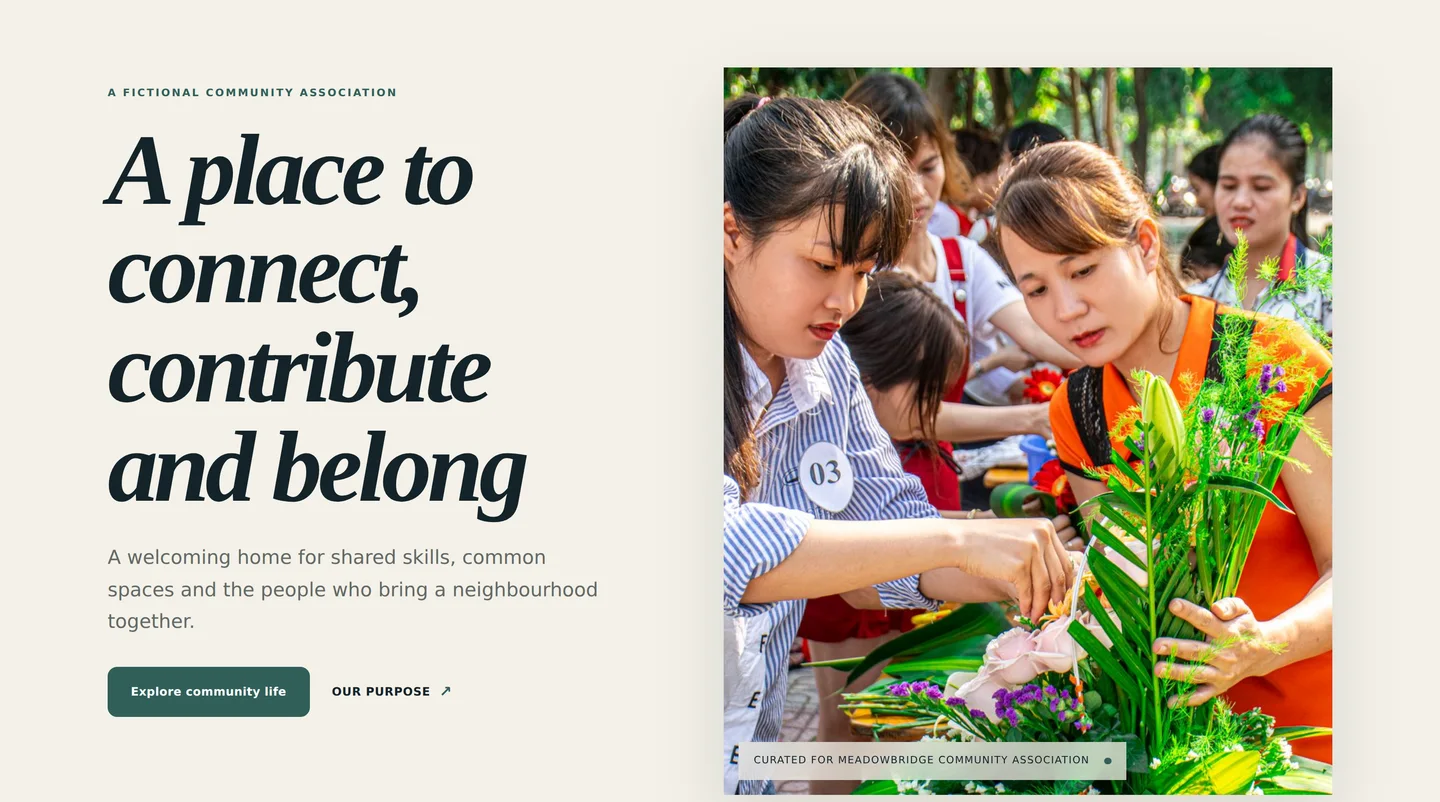
The dedicated Meadowbridge example uses a fictional association and illustrative photography to show a possible structure. Its committee roles and activities are demonstration content. Your own website should use your association's approved information.
Keep membership processes realistic
A public website can explain eligibility, describe benefits and tell someone how to enquire about joining. Be clear about what happens after the enquiry and which team responds. If you already use a specialist membership service, explain its role before linking to it.
Do not promise automated membership approvals, dues collection, private member access, renewals, ticketing or donation processing unless your actual integration supports that workflow. Eyivo's starting design provides a public website presentation. A button labelled "Join" is not evidence of a membership-management system.
Review the website before sharing it
Read the preview on a phone and follow every menu item and main link. Check activity dates, contact instructions, heading order and image descriptions. Ask someone unfamiliar with your association to find your mission, a current activity and the correct enquiry route. Their questions can reveal missing information.
Use descriptive page titles and readable paragraphs. Remove repeated explanations instead of padding the copy. Review leadership details after committee changes and activity information whenever plans change. A free Eyivo preview remains noindex; review the current paid packages when you need a custom domain. Domain connection and visibility settings still require checking, and no package guarantees search rankings.